'%3e%3cg%20filter='url(%23filter0_i_679_862)'%3e%3ccircle%20cx='47.3083'%20cy='88.4997'%20r='11.3083'%20fill='url(%23paint0_radial_679_862)'/%3e%3c/g%3e%3ccircle%20cx='50.0719'%20cy='91.9742'%20r='4.025'%20fill='%231B1B1B'/%3e%3cg%20style='mix-blend-mode:color-dodge'%3e%3ccircle%20cx='47.3893'%20cy='90.0612'%20r='1.91667'%20fill='%23D9D9D9'/%3e%3c/g%3e%3c/g%3e%3cg%20clip-path='url(%23clip1_679_862)'%3e%3cg%20filter='url(%23filter1_i_679_862)'%3e%3ccircle%20cx='81.6443'%20cy='88.4997'%20r='11.3083'%20fill='url(%23paint1_radial_679_862)'/%3e%3c/g%3e%3ccircle%20cx='84.4039'%20cy='91.9742'%20r='4.025'%20fill='%231B1B1B'/%3e%3cg%20style='mix-blend-mode:color-dodge'%3e%3ccircle%20cx='81.7214'%20cy='90.0612'%20r='1.91667'%20fill='%23D9D9D9'/%3e%3c/g%3e%3c/g%3e%3cdefs%3e%3cfilter%20id='filter0_i_679_862'%20x='36'%20y='75.1711'%20width='23.6273'%20height='24.6375'%20filterUnits='userSpaceOnUse'%20color-interpolation-filters='sRGB'%3e%3cfeFlood%20flood-opacity='0'%20result='BackgroundImageFix'/%3e%3cfeBlend%20mode='normal'%20in='SourceGraphic'%20in2='BackgroundImageFix'%20result='shape'/%3e%3cfeColorMatrix%20in='SourceAlpha'%20type='matrix'%20values='0%200%200%200%200%200%200%200%200%200%200%200%200%200%200%200%200%200%20127%200'%20result='hardAlpha'/%3e%3cfeOffset%20dx='1.01015'%20dy='-2.02031'/%3e%3cfeGaussianBlur%20stdDeviation='1.01015'/%3e%3cfeComposite%20in2='hardAlpha'%20operator='arithmetic'%20k2='-1'%20k3='1'/%3e%3cfeColorMatrix%20type='matrix'%20values='0%200%200%200%200%200%200%200%200%200%200%200%200%200%200%200%200%200%200.15%200'/%3e%3cfeBlend%20mode='normal'%20in2='shape'%20result='effect1_innerShadow_679_862'/%3e%3c/filter%3e%3cfilter%20id='filter1_i_679_862'%20x='70.3359'%20y='75.1711'%20width='23.6273'%20height='24.6375'%20filterUnits='userSpaceOnUse'%20color-interpolation-filters='sRGB'%3e%3cfeFlood%20flood-opacity='0'%20result='BackgroundImageFix'/%3e%3cfeBlend%20mode='normal'%20in='SourceGraphic'%20in2='BackgroundImageFix'%20result='shape'/%3e%3cfeColorMatrix%20in='SourceAlpha'%20type='matrix'%20values='0%200%200%200%200%200%200%200%200%200%200%200%200%200%200%200%200%200%20127%200'%20result='hardAlpha'/%3e%3cfeOffset%20dx='1.01015'%20dy='-2.02031'/%3e%3cfeGaussianBlur%20stdDeviation='1.01015'/%3e%3cfeComposite%20in2='hardAlpha'%20operator='arithmetic'%20k2='-1'%20k3='1'/%3e%3cfeColorMatrix%20type='matrix'%20values='0%200%200%200%200%200%200%200%200%200%200%200%200%200%200%200%200%200%200.15%200'/%3e%3cfeBlend%20mode='normal'%20in2='shape'%20result='effect1_innerShadow_679_862'/%3e%3c/filter%3e%3cradialGradient%20id='paint0_radial_679_862'%20cx='0'%20cy='0'%20r='1'%20gradientUnits='userSpaceOnUse'%20gradientTransform='translate(47.3083%2088.4997)%20rotate(29.2803)%20scale(11.9552)'%3e%3cstop%20offset='0.634615'%20stop-color='white'/%3e%3cstop%20offset='1'%20stop-color='%23A8FFEA'/%3e%3c/radialGradient%3e%3cradialGradient%20id='paint1_radial_679_862'%20cx='0'%20cy='0'%20r='1'%20gradientUnits='userSpaceOnUse'%20gradientTransform='translate(81.6443%2088.4997)%20rotate(29.2803)%20scale(11.9552)'%3e%3cstop%20offset='0.634615'%20stop-color='white'/%3e%3cstop%20offset='1'%20stop-color='%23A8FFEA'/%3e%3c/radialGradient%3e%3cclipPath%20id='clip0_679_862'%3e%3crect%20width='22.6167'%20height='22.6167'%20fill='white'%20transform='translate(36%2077.1914)'/%3e%3c/clipPath%3e%3cclipPath%20id='clip1_679_862'%3e%3crect%20width='22.6167'%20height='22.6167'%20fill='white'%20transform='translate(70.3359%2077.1914)'/%3e%3c/clipPath%3e%3c/defs%3e%3c/svg%3e)
How to Add Moneko Widgets to Your iOS Home Screen
Learn how to add Moneko widgets to your iOS home screen to view your budget envelopes, spending progress, and top categories at a glance. Widgets display data for your selected Space in your selected currency.
How to Add Moneko Widgets to Your iOS Home Screen
Moneko widgets let you view your financial data directly on your iOS home screen without opening the app.
Widgets display your spending, budget progress, and financial insights at a glance, making it easy to stay on top of your finances throughout the day.
Use widgets when you want to:
- check your spending without opening the app
- see budget progress at a glance
- monitor category breakdowns
- get quick financial insights
What Are Moneko Widgets?
Moneko widgets are home screen widgets that display your financial data in real-time.
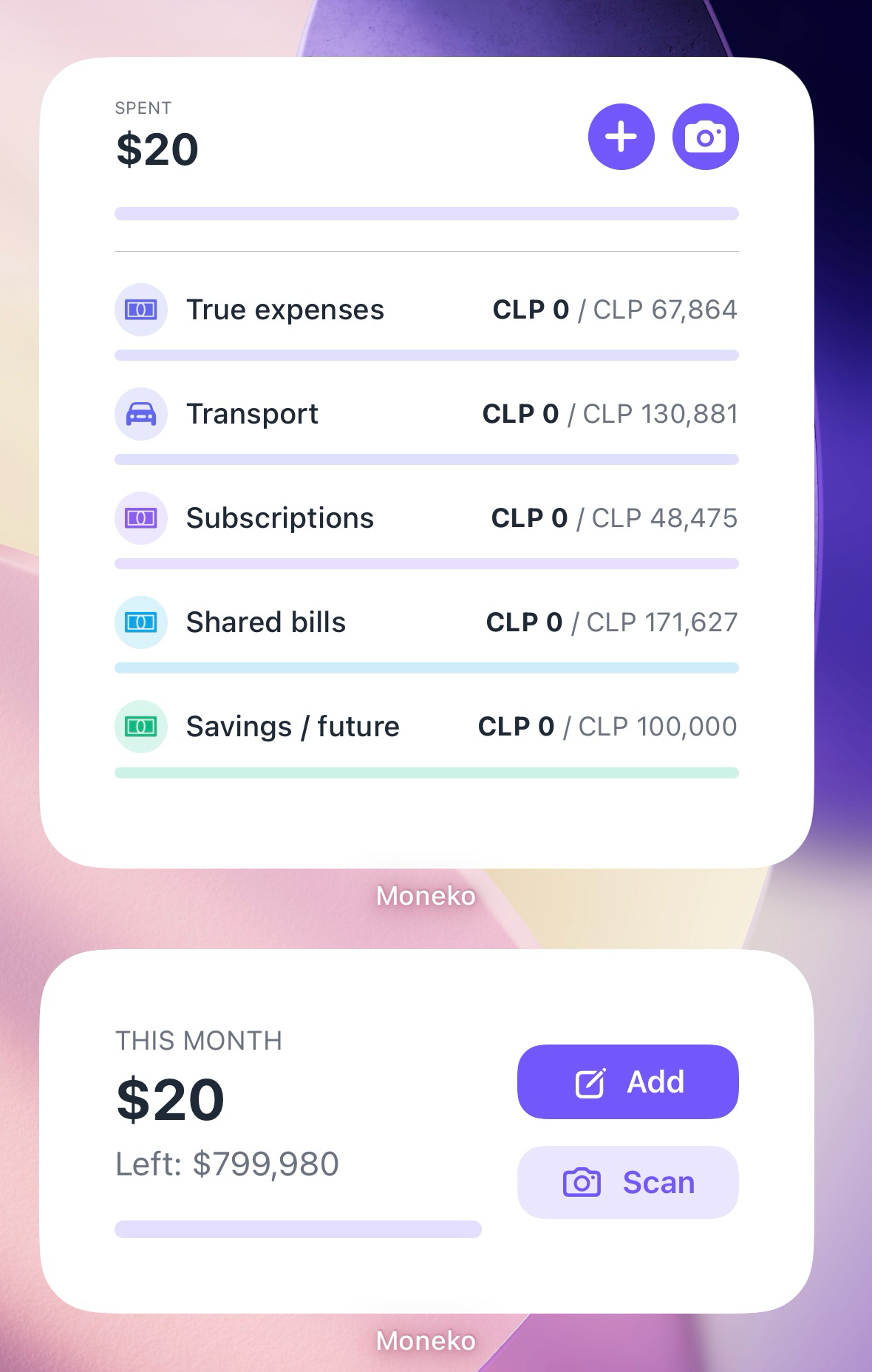
Moneko offers two widget types:
Budget Envelopes Widget Shows your budget envelopes (Pockets) with individual progress tracking.
Top Categories Widget Shows your spending breakdown by category with visual bar charts.
All widgets use the currency you have selected in the Moneko app settings.
How to Add a Moneko Widget
To add a Moneko widget to your iOS home screen:
- Press and hold on an empty area of your home screen until the apps start jiggling
- Tap the + button in the top left corner
- Search for Moneko in the widget gallery
- Swipe to choose the widget type (Budget Envelopes or Top Categories) and size you want
- Tap Add Widget
- Configure which Space to display (Personal or Household)
- Drag the widget to your desired position
- Tap Done in the top right corner
Expected Result
The Moneko widget appears on your home screen. If you see "Long press to edit", long-press the widget and configure the Space setting.
Choosing Widget Size
Moneko widgets come in different sizes:
- Small - Shows spent amount with progress bar and quick action buttons
- Medium - Shows spent, remaining budget, progress, and action buttons (Add/Scan)
- Large (Budget Envelopes) - Shows spent, remaining, progress, and list of budget envelopes with individual progress
- Large (Top Categories) - Shows spending with vertical bar chart of top categories
Swipe left and right in the widget gallery to preview different sizes before adding.
Expected Result
Choose the size that fits your home screen layout and shows the amount of information you need.
Positioning Your Widget
After adding a widget:
- Press and hold the widget until it starts jiggling
- Drag it to your desired position
- You can also drag it to another home screen page
- Tap Done when satisfied with the position
Expected Result
The widget is positioned where you want it on your home screen.
Multiple Widgets
You can add multiple Moneko widgets to show different types of data:
- Add a Budget Envelopes widget to track your budget progress
- Add a Top Categories widget to see spending breakdowns
- Add widgets for different Spaces (Personal vs Household)
- Mix different sizes to fit your home screen layout
Each widget can be customized independently with its own Space setting.
Currency Display
All Moneko widgets automatically use the currency you have selected in the Moneko app:
- Open Moneko
- Check your Currency preference on top right corner
- All widgets will display amounts in this currency
Expected Result
Your widgets show consistent currency formatting with the rest of the app.
Removing a Widget
To remove a Moneko widget from your home screen:
- Press and hold the widget
- Tap Remove Widget from the menu
- Confirm removal if prompted
Expected Result
The widget is removed from your home screen. This does not delete any data from Moneko.
Troubleshooting Common Issues
Widget Shows "Long press to edit"
This means the widget needs Space configuration:
- Long-press the widget
- Select Edit Widget
- Choose which Space to display (Personal or Household)
Widget Shows No Data
If your widget shows no data or outdated information:
- Ensure you have configured the Space setting
- Ensure you have an active internet connection
- Open the Moneko app to trigger a data refresh
- Wait a few moments for the widget to update
Widget Uses Wrong Currency
If your widget shows the wrong currency, change it in the Moneko app:
- Open Moneko
- Go to Settings
- Select your preferred Currency
- The widget will automatically update to use the new currency
Cannot Find Moneko in Widget Gallery
Make sure you have the latest version of Moneko installed from the App Store.
Older versions may not include widget support.
Widget Takes Up Too Much Space
Try a smaller widget size:
- Remove the current widget
- Add it again and choose a smaller size (small or medium instead of large)
Widget Not Updating
Widgets update periodically. For immediate updates:
- Open the Moneko app
- Navigate to any screen
- Return to the home screen
- The widget should refresh with latest data
Lock Screen Widgets
Moneko also offers lock screen widgets for quick access without unlocking your phone:
- Circular - Shows a quick add button for logging expenses
- Rectangular - Shows a "Scan Receipt" button for quick receipt capture
Lock screen widgets are perfect for quickly logging expenses while on the go.
How to Add Lock Screen Widgets
- Press and hold on your lock screen until the customize options appear
- Tap Customize at the bottom
- Tap the + or lock screen widgets area
- Search for Moneko
- Select the circular or rectangular widget
- Tap Done
Expected Result
The Moneko lock screen widget appears and provides quick access to expense logging.
Frequently Asked Questions
Moneko widgets are home screen widgets that display your financial data directly on your iOS home screen without opening the app.